Turning a tablet into a wall calendar
Mounting an old iPad or Android tablet in the kitchen, and the parts nobody warns you about
There's a drawer in most houses with a tablet in it. It was good four years ago, the battery is tired, nobody picks it up, and it's too useful to throw away. Putting it on the kitchen wall as a family calendar is a good use for it, and it's the thing Jotcal was built for.
It's also a project with about four ways to go wrong, most of them in the first hour. This is what I'd tell someone before they start drilling.
First, check the tablet isn't too old
This is the step people skip and then discover at the App Store. Jotcal needs iPadOS 18 or later, or Android 12 or later.
On the Apple side that means roughly 2019 and newer: iPad 7th generation and later, iPad Air 3rd generation and later, iPad mini 5th generation and later, and all 11-inch iPad Pros plus the 12.9-inch from the 3rd generation. An iPad Air 2 or an iPad 6th generation won't run it, and no amount of wanting will change that. Check Settings → General → About for the model, and Software Update for how far it'll go.
Android 12 landed in late 2021, so most tablets from 2022 onward are fine and a lot of older ones were never updated that far. Check Settings → About tablet. Cheap Android tablets are the usual disappointment here, because they often shipped on an old version and never moved.
If the tablet is too old, this is the point to stop rather than after you've mounted it.
Power is the actual problem
An always-on screen doesn't run on battery. It runs on mains, permanently, which turns a software project into a small electrical one. Decide this before you decide the position, because the position is downstream of where the cable can go.
The options, in order of how much they cost and how good they look:
- A cable down the wall to an existing socket, with a cover strip. Cheap, quick, and visible
- A cable behind the plasterboard to a socket below, using a pair of brush plates. A couple of hours and it looks proper
- A new socket behind the tablet. Best result, needs an electrician in most places
A tablet held at 100% charge on mains for years will swell its battery. It's a known lithium-ion behaviour and it's why old kiosk iPads bulge. If your tablet has charge limiting, use it. Otherwise accept that a wall tablet is a device you're spending, and pick one you were finished with anyway.
Mounting height, which people get wrong
The instinct is eye level, because that's where you hang pictures. It's the wrong height for a calendar you write on.
Hang it where you'd hang a family whiteboard, which is lower: roughly the height of a kitchen wall cupboard's base, so that a standing adult writes with a relaxed wrist rather than a raised one. You read it from across the room and you write on it up close, and writing is the more demanding posture, so it wins.
Then go and stand where you'll actually read it, at the doorway or the kettle, and set the display size from there. Everyone tunes the text holding the tablet in their hands, mounts it, and then can't read a thing from six feet away.
Setting up the wall mode
Both apps have a Wall display switch in Settings. It's the same idea on each platform and it does slightly different things, because the platforms allow different things.
On iPad it turns the app into a kiosk surface: the screen stops sleeping, and the home indicator hides so nothing floats over the calendar. It re-asserts itself when the app comes back to the foreground, because iOS resets the sleep setting whenever an app backgrounds. You'll also want Settings → Display & Brightness → Auto-Lock → Never and Guided Access if you have children who like the App Store.
On Android, Wall display gives you large text and touch targets, and a separate Display size slider scales the whole interface up for reading across a room. Under Always-On Display there's Keep Screen On. If the tablet has a frontlight or backlight you can dim, Night Dimming runs that on a schedule so the kitchen isn't lit by a calendar at 1am.
Android is the more capable platform for this. If you have both tablets in the drawer, put the Android one on the wall.
Which layout belongs on a wall
A wall calendar and a phone calendar want different things, so this isn't the layout you'd pick for yourself.
A tablet on a wall gets three of these, not the full set from the phone: Grid, Timeline Horizontal and Daybook. Dial and Pulse are phone layouts and don't appear on a tablet-sized screen at all, so don't go looking for them once it's mounted.
The Grid is the default answer: seven days on one screen with a tasks panel, which is the closest thing to the paper calendar it's replacing. Nobody has to interact with it to get value out of it, which is the whole point of a wall.
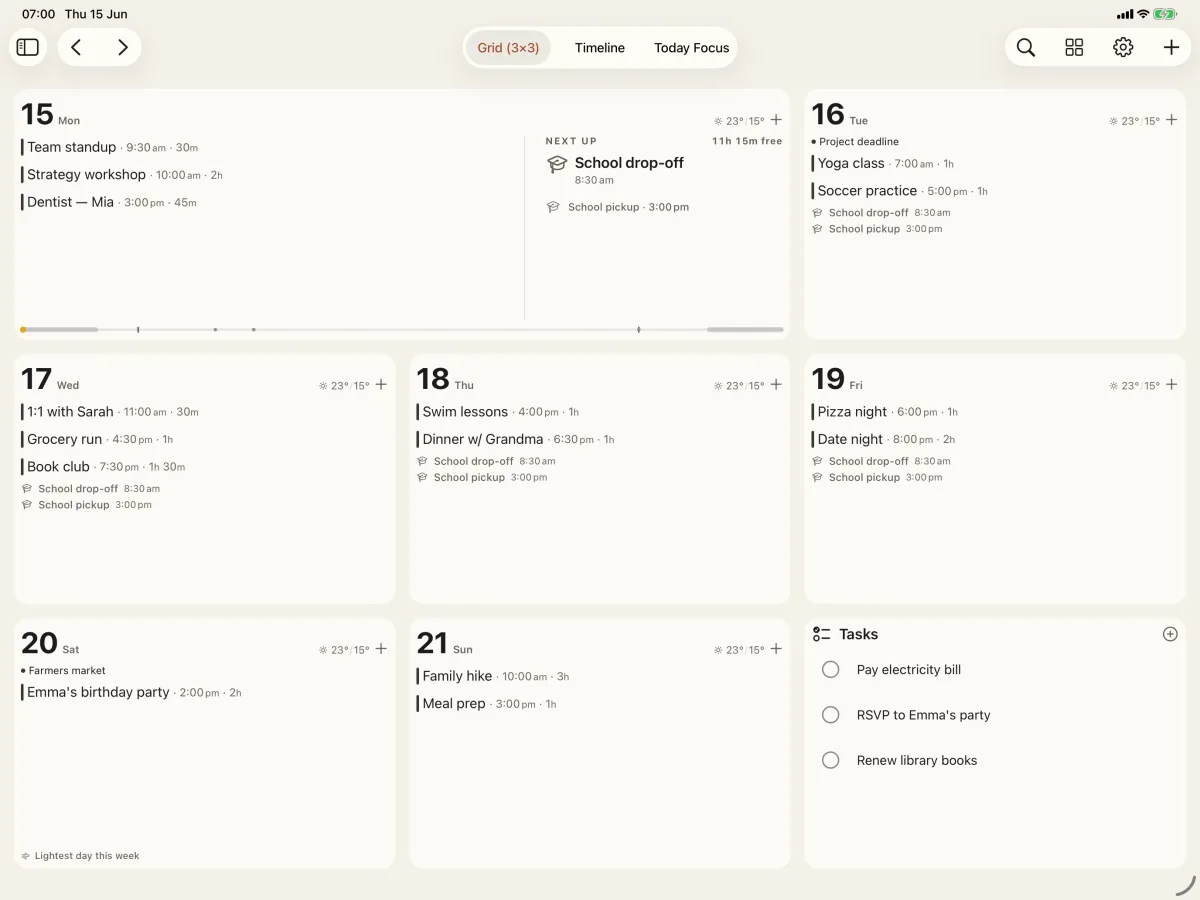
Grid
Timeline Horizontal lays the week out hour by hour, one column per day, so overlaps and gaps show as shape rather than something you have to read the times to notice. It rewards someone who actually stops in front of it, more than a glance from across the room.
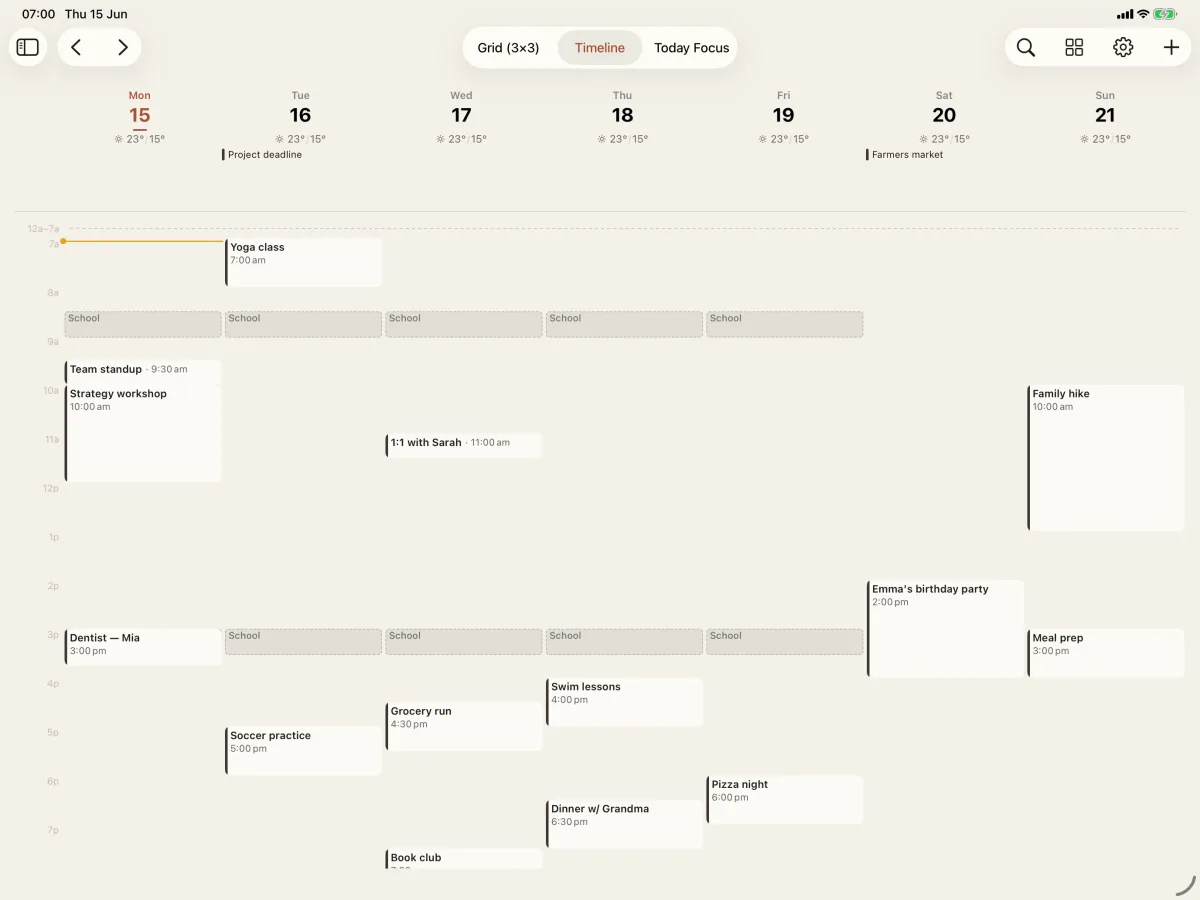
Timeline Horizontal
Daybook suits a hallway by the front door better than a kitchen: full detail on today, the week alongside. It's the morning layout, for the ten minutes when everything is happening at once.
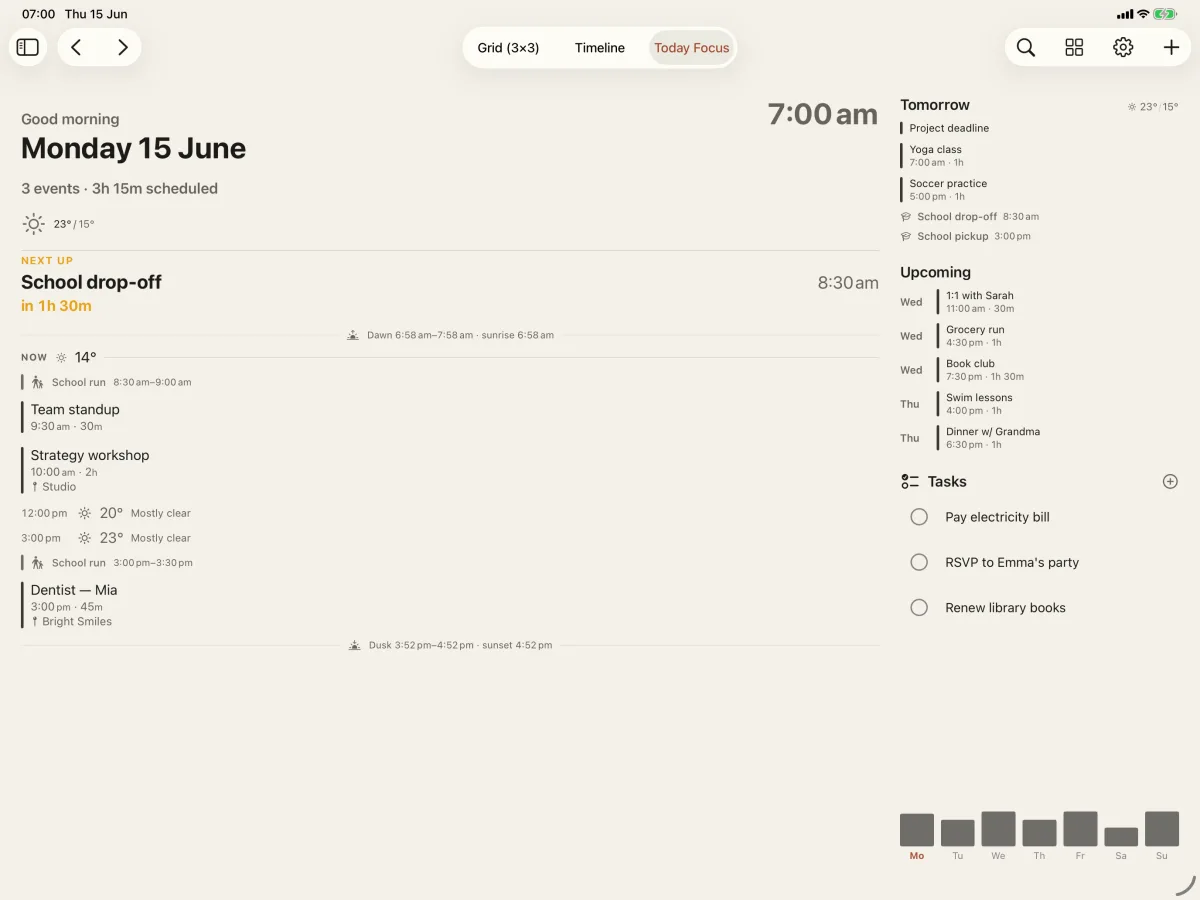
Daybook
Getting the family's calendars onto it
A wall calendar is only useful if it shows everyone, which usually means one shared calendar that the household already has.
On iPad, Jotcal reads whatever the iPad already syncs. Add the accounts in Settings → Calendar → Accounts and they appear. There's no account to create in Jotcal and no sign-in, because iOS already did that job.
On Android, Device Calendars does the same thing for anything the tablet already syncs, which covers Google. Jotcal can also connect directly to iCloud, to personal Outlook and Hotmail accounts, and to any CalDAV server.
Whatever you use, the wall tablet should read the shared calendar rather than own it. Then a phone edit shows up on the wall and a pen stroke on the wall shows up on the phones, which is the behaviour that makes people trust it.
What happens when the trial ends
Every install starts with 14 days of the whole app. No card, nothing to cancel. When those 14 days are up, Jotcal settles back to the free calendar: one conventional fully-editable view, your events, your tasks, and handwriting. It does not put a paywall on a screen you've screwed to a wall.
A wall calendar that demands payment is worse than no wall calendar, because it's a permanent advert in your kitchen. Pro is a one-time unlock for the layouts, the weather layer, the widgets and the insight overlays, and if you don't buy it the thing on your wall is still a working calendar.
What Jotcal won't do
If you're replacing a Skylight or a Cozi subscription, know what's missing. There are no chores, no meal planning, no shopping lists, and no rewards charts. It's a calendar, tasks and notes, and that's the whole product.
There are no travel-time reminders. If those matter to your household, this isn't ready for you, and better to know now than in week two.
What you get instead is that it runs on hardware you already own, in a room you already stand in, for one payment.
Jotcal on the App Store · Jotcal on Google Play
Free to download, with 14 days of everything.
Related
- Running it on an e-ink tablet, if you want a wall panel that isn't a light source at night
- Writing events by hand with an Apple Pencil or an Android stylus
- Using it without a Jotcal account, including CalDAV and self-hosted calendars
- Why this exists, which starts with a whiteboard