A calendar app for e-ink tablets
Setting up Boox and other e-ink Android devices as a wall calendar
Most calendar apps look wrong on e-ink within about four seconds of opening them. Thin grey-on-grey type, colour-coded event chips that all reduce to the same mid-grey, animated month transitions that ghost, and a pull-to-refresh spinner that repaints the whole panel. None of that is the panel's fault. It's that nobody drew the app for a screen with sixteen grey levels and a refresh you can watch happen.
This page is the setup guide I wanted when I first put a Boox on the kitchen wall. It covers what to change, what to expect, and the parts that are still awkward.
Why a wall calendar wants e-ink specifically
An LCD is lit by a single white backlight behind the entire panel. You can dim it. You can't turn it off while still showing an image. So a tablet mounted in a kitchen or hallway is a light source all night, showing a mostly-dark screen and still glowing at you. I first noticed this arguing about car dashboards, where the same physics makes an instrument cluster tiring to sit behind after dark, and it transfers to a wall panel without modification.
E-ink is reflective. It's lit by the room. At 2am it's a piece of paper in a dark room, which is to say it's nothing at all. It also holds its image with no power, so an always-on calendar costs you almost nothing between refreshes. A 13.3" Boox Note Max on a wall will run for weeks on a charge showing a week grid, because showing is free and only changing costs.
Refreshes are visible, greys are limited, and fast scrolling looks bad. A calendar happens to be about the most forgiving thing you could ask an e-ink panel to do, because it changes a handful of times a day.
What Jotcal detects on its own
On first run Jotcal reads the device model and decides three things without asking you: whether the panel is e-ink at all, whether it's monochrome or colour e-ink, and whether there's a stylus digitizer. Onyx/Boox, reMarkable, Supernote, Kobo, Kindle, Bigme, Meebook and PocketBook are all recognised by manufacturer.
Boox models are then matched individually, because the colour ones need different handling. Tab Ultra C, Tab Ultra C Pro, Note Air3 C, Note Air4 C, Tab Mini C, Page Color, Poke5 Color, Go Color 7 and Palma 2 Pro get the colour treatment. The Note Air line, Note Max, Max Lumi, Tab X, Tab Ultra, Poke5, Page, Leaf, Go 6, Go 7, Go 10.3 and Palma get monochrome. Anything Boox that isn't on either list falls back to monochrome, which is the safer guess.
If it gets your device wrong, every one of these is a switch you can flip. The detection is a default, not a lock.
The settings that matter
All of these live under Settings → Display. In rough order of how much difference they make:
- E-ink Display. High contrast monochrome, no animations, adaptive refresh. If your device was detected you'll see "(detected)" next to it and it's already on. This is the one that stops the ghosting
- Wall display. Large text and touch targets for wall-mounted use. Turn this on the moment the device is more than arm's length away
- Display size. Scales the whole interface up for viewing across a room. Wall display sets a sensible default; this is the fine adjustment. Walk to where you'll actually stand and tune it from there, not from the desk
- Display Mode. Auto follows the hardware. Color and Monochrome force it. Worth forcing to Monochrome on a Kaleido panel if you find the colour layer muddy, which is a matter of taste
- Keep Screen On, under Always-On Display. Stops the screen sleeping. On e-ink this costs very little
- Night Dimming. Reduces frontlight brightness on a schedule. This only appears if your device has a frontlight. The Note Max deliberately doesn't have one, so you won't see this section on a Note Max and that's correct
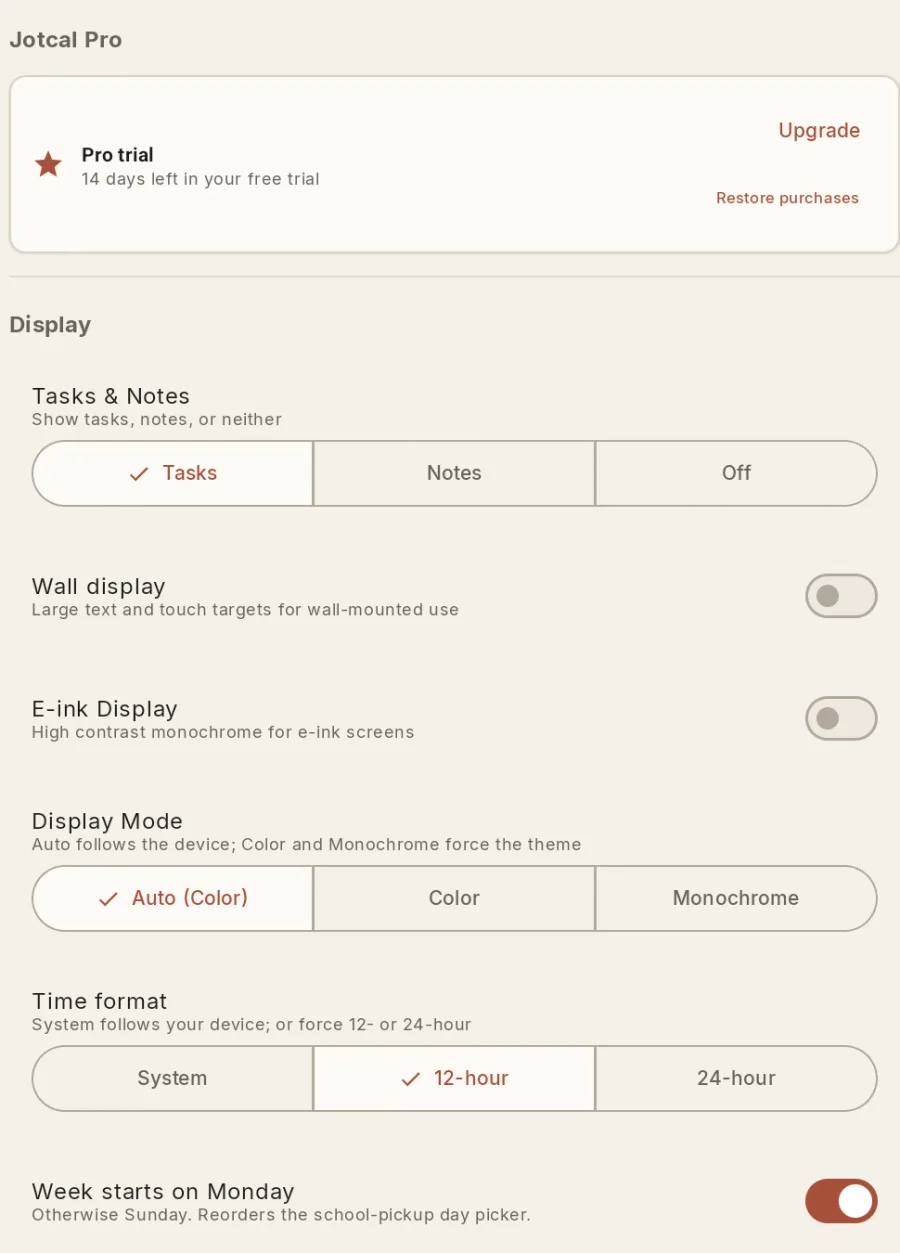
Settings → Display. Shown here on a plain emulator, so E-ink Display reads off rather than "(detected)". The toggle itself is the same one a real Boox lights up automatically.
Pick a layout after you've set the size, not before, because screen size decides which layouts you even see. A 10"+ panel gets Grid, Timeline and Daybook; a 7" one gets Agenda, Dial and Pulse instead, since a seven-day grid doesn't fit a screen that small. On a large panel, Grid is the one most people leave up on a wall. On a small one, Pulse draws the week as bars, which reads well at distance because the shapes carry the information rather than the text.
Writing on it with the pen
This is the part that makes an e-ink calendar worth the trouble, and it's also where most apps on Boox hardware feel wrong.
Boox devices run Android, so any Android app can take pen input through the normal touch pipeline. The problem is latency. Strokes drawn that way land maybe a fifth of a second behind the nib, which on paper-like hardware feels broken in a way it wouldn't on an LCD. Onyx solves this for its own apps with a raw drawing mode that talks to the EPD controller directly and paints the stroke ahead of the app.
Jotcal uses that same path. Getting there took two attempts. The first, back in February 2026, looked like it worked and then silently never fired a stroke event, and the diagnosis was wrong for months. The route needs Android's hidden-API restrictions lifted to reach Onyx's vendor framework classes, which the app declares. On a Boox device with a pen, strokes land under the nib.
What you write becomes a real event. Write "soccer Thu 5pm" into a day and recognition turns it into a calendar entry that syncs like any other. It lands immediately as a read-only receipt chip in whichever day it parsed to, named explicitly when that isn't the day you wrote in, with Edit and Undo sitting next to it for a few seconds before it settles into a normal event. There's no confirmation form and no keyboard unless you ask for one. You write and walk away.
Recognition runs on your device. The model downloads once and then works offline, and your handwriting itself never leaves the device.
Finger touch passes straight through to scrolling and tapping, so the pen and your hand do different jobs and you don't have to select a tool. There's no pencil icon to find, because the whole surface is already a writing surface.
Getting your calendar onto the device
A Boox tablet is where this gets fiddly, because many of them ship without Google Play services or with a partial install, and the usual advice assumes you have them.
Jotcal connects four ways on Android. Device Calendars reads whatever your Android device already syncs, which covers Google and Exchange and Samsung accounts through the OS and is one tap. If Play services work on your Boox, add your Google account in Android settings and use this. There's no Google sign-in inside Jotcal itself.
If Play services are absent or unreliable, connect directly instead: iCloud Calendar, Outlook Calendar (personal Outlook and Hotmail accounts, not work or school ones), or any CalDAV server, which covers Fastmail, Nextcloud, Posteo, mailbox.org and self-hosted setups. These don't need Play services at all.
If your household is on Google and Play services are broken on your device, you're looking at CalDAV against a different provider, or fixing Play services. Direct Google sign-in is built but isn't switched on yet.
Mounting it
Three things I got wrong and would tell anyone starting:
- Mount it at the height you'd hang a whiteboard, not at eye level. You write on it standing up, and eye level puts your wrist at an angle that makes handwriting worse
- Run power before you decide the position. E-ink lasts a long time between charges, but "a long time" still ends, and a calendar that's dead is worse than no calendar
- Set the display size from where you'll stand. Everyone tunes it holding the device, then hangs it up and can't read it
A 13.3" panel holds a readable week for a family of four. Ten inches works for a couple. Below that you're better off on the Agenda layout showing today, because a week's worth of text at 7" is legible up close and useless from the doorway, which defeats the point.
What's still awkward
Refreshes are visible. Adaptive refresh keeps full repaints down to when they're needed, but you will see the panel flash, and if that bothers you it will keep bothering you.
Colour e-ink is dimmer than you expect. Kaleido panels lose brightness to the colour filter, so a Tab Ultra C on a wall in a dim hallway is harder to read than a monochrome Note Air in the same spot. If the device is going somewhere dark, monochrome plus a frontlight beats colour.
Recognition wants reasonably tidy handwriting. It handles ordinary quick writing fine and gets worse the faster you scrawl. The receipt chip exists precisely because it's sometimes wrong, and Undo is one tap.
There are no travel-time reminders.
Trying it
Every install starts with 14 days of the whole app, no card and nothing to cancel. When the trial ends it settles back to the free calendar rather than putting a paywall on a screen you've mounted to a wall. Handwriting stays free permanently on every platform, because the pen is the point.
E-ink support is Android-only, which is where the e-ink hardware is.
If you're setting one up and something here is wrong or missing, tell me at support@jotcal.app. This page gets better from people arguing with it.
Related
- Turning a tablet into a wall calendar, including LCD tablets and old iPads
- Handwriting events with a stylus, and what recognition does and doesn't do
- Why this exists, which is a longer argument about wall calendars and whiteboards